
Offline POS App in Nigeria: Keep Selling When the Network Goes Down
Olamide Ademola · · 8 min read
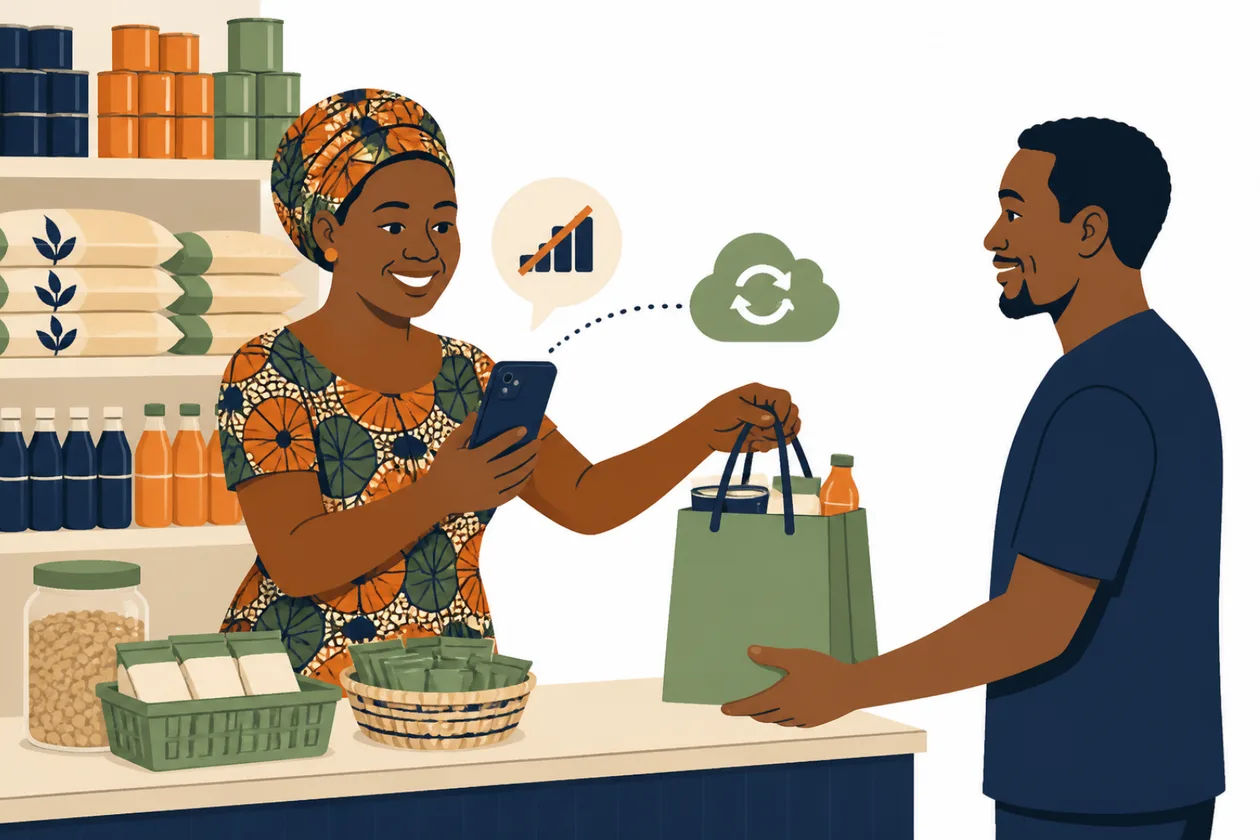
What do you do when a customer is standing at your counter with cash in hand, and your data has just gone?
In many Nigerian shops, the answer is a notebook. You write the sale down and promise to enter it later. Then the evening rush comes, and by closing time nobody is sure which sales made it into the app. The stock is off, and so is the cash count.
An offline POS app removes that gap. It lets you keep recording sales when the network drops, and it sends them by itself when the network is back. This guide explains what an offline POS app should do, how selling with no network works in Anvela on the phone and on a computer, and the small habits that keep your records clean.
What is an offline POS app?
An offline POS app is a point of sale app that keeps working without internet. You can still find items, take payment and record the sale. The app keeps each sale on the device, then sends it to your records when the connection returns.
Network trouble is part of daily business in Nigeria. Data runs out. A mast goes down. Your shop sits where the signal comes and goes. A POS system that stops when the network stops loses sales, or pushes your staff back to paper.
Why selling without internet matters for Nigerian shops
When a sale is not recorded at the moment it happens, three things go wrong:
- Stock stops matching. The item has left the shelf, but the app still counts it.
- The cash count does not add up. There is more money in the box than the app expects.
- Sales get lost or recorded twice. A sale on paper may never be entered, or it is entered twice by two people.
If you have ever wondered why your shop stock never adds up, missed sales during network outages are often part of the story.
What a good offline POS app should do
Before you trust any app with your counter, check these points:
- It opens with no network. You should see your items and prices from the last time it loaded.
- It records the sale fully. Items, quantities, price and how the customer paid.
- It tells you clearly that the sale is saved. A small grey line is easy to miss.
- It sends sales by itself. Nobody should have to remember to press a button when the network returns.
- It never records a sale twice. If sending is tried again, the same sale must count once.
- It checks stock when the sale arrives. If two phones sold the last carton while offline, the app should tell you, not quietly settle it.
- It shows you what is still waiting. You should always know which sales are saved, waiting, sending or sent.
How selling with no network works in Anvela
Anvela records paid sales with no network on the phone app and on the web. Here is what happens.
- Anvela opens with no network on a phone or in a browser where you have used it before. Sell, Stock and Home show what was last loaded, clearly marked as offline.
- You record a paid sale as usual: cash, transfer, card (POS) or part cash.
- On the phone, a full screen says Sale saved on this phone, so you know the sale was taken. You can keep selling.
- When the network is back, each waiting sale is sent by itself. Stock is checked then.
- Every sale carries its own ID, so a sale that is sent twice is still recorded only once.
- If a sale cannot go through, for example because the stock ran out first, it waits for you in Devices & offline. Nothing is settled in secret.
You can also record money out with no network on the phone, such as fuel for the generator or a small market purchase. It is sent the same way.
Record a sale on the phone with no network
- Tap Sell, then New Sale.
- Tap an item, or type its name in Find an item. You can also tap Scan items and use the camera.
- Check the quantity and price of each item.
- Under How did the customer pay?, tap how they paid.
- Tap Record sale.
- You see Sale saved on this phone. Serve the next customer.
Record a sale on the Till with no network
The Till is Anvela's fast selling screen for a computer with a barcode scanner. You open it from Sell → Sales with Open the till. If you are new to it, our guide to the POS system for shops in Nigeria explains the whole counter setup.
- Scan the items as usual.
- Press Enter (or tap Take payment).
- Press 1 for Cash, 2 for Transfer, 3 for Card (POS) or 4 for Part cash.
- Press Enter to tap Payment received — record sale.
- The Till tells you the sale is kept in this browser and will be sent when the network is back. You can still print the receipt.
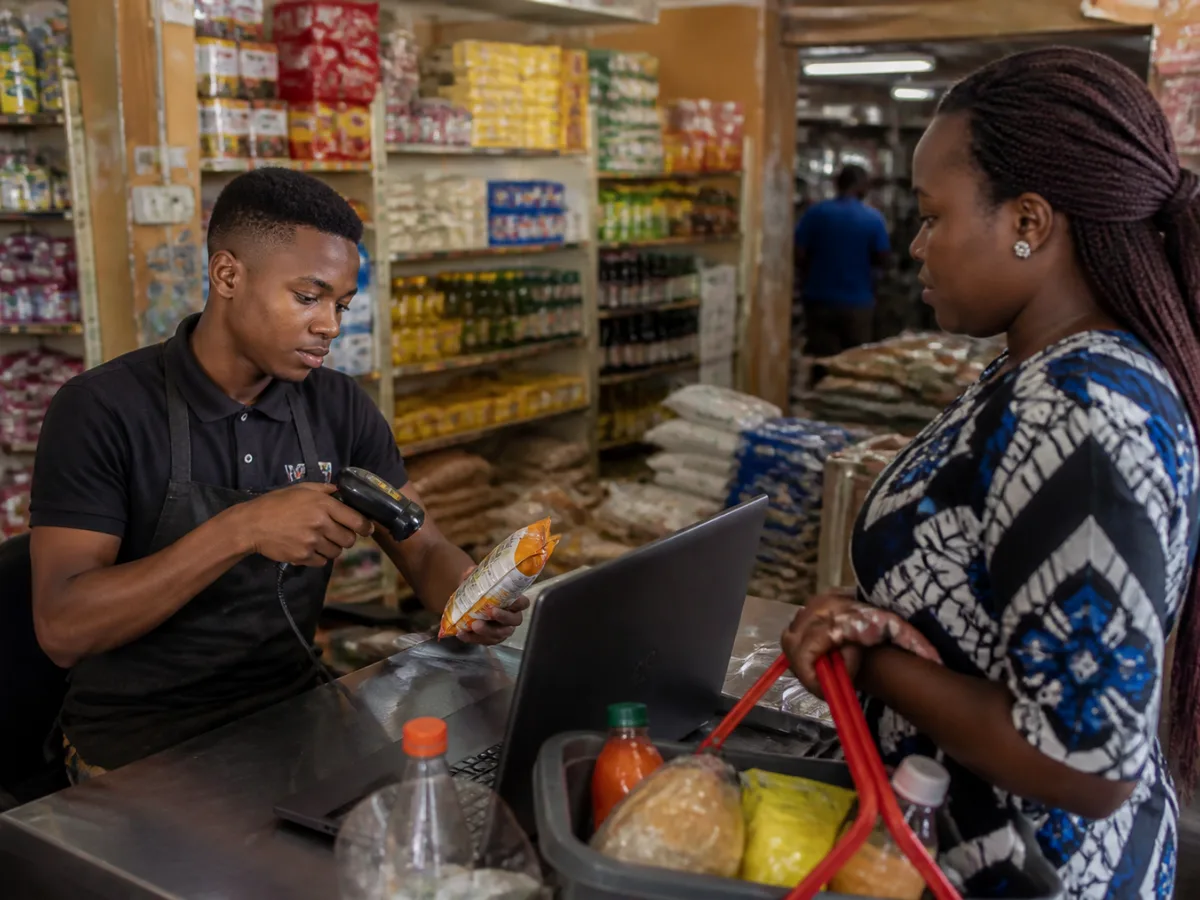
What happens when the network comes back?
You do not need to do anything. Anvela sends the waiting sales by itself. Your stock and sales update. On the phone, a small line on the screen tells you how many are still waiting. Tap it to open Devices & offline and see them.
Most of the time, every sale goes through. Sometimes one cannot, usually because two people sold the last item while one of them had no network. Anvela does not guess. The refused sale waits in Devices & offline with the reason, and you decide.
On the phone you can:
- Tap Send again after you fix the cause, for example after recording stock that arrived.
- Tap Remove from this phone if the sale should not be recorded. It asks twice, because the sale will not be saved.
On the web, a refused sale can be taken out of the browser with Remove.
What does not work offline
It is better to know the limits before the network goes:
- Anvela must have been opened on that phone or browser with the network at least once. A brand-new phone with no data cannot load your items.
- Offline selling covers paid sales. A sale on account, where the customer pays later, needs the network.
- Approvals and anything that needs a live check run when you are back online.
- What you see while offline is what was last loaded. Another branch's sales will not show until you reconnect.
- The waiting sales live on that phone or in that browser. Do not clear the browser's data or uninstall the app while sales are still waiting.
Habits that keep offline sales clean
- Open Anvela on every selling phone each morning while you have network. Today's items and prices are then on the device.
- Keep selling in the app, not on paper.
- Check for waiting sales before you count the cash. Cash sales still waiting on a phone are not yet in the count. Let them send first, then do your closing cash count.
- Look at Devices & offline once a day. A refused sale is easier to sort out the same day.
- Confirm transfers the usual way. Your bank's SMS alert often still arrives when data is down. Do not release goods on a transfer you have not seen.
How much does an offline POS app cost in Nigeria?
In Anvela, offline selling is part of selling, not an extra. Every area is free for every business until 12 January 2027. After that, the Start plan stays free for one store, three people and 300 items. Growth is ₦9,500 a month and Business is ₦24,500 a month. Larger networks start from ₦75,000 a month on a yearly contract.
To see how it fits with stock, bookings and your store website, read our guide to business management software in Nigeria.
Frequently asked questions
Can a POS app work without internet in Nigeria?
Yes. Anvela records paid sales with no network on the phone app and on the web. The sales are kept on the device and sent by themselves when the network is back, and stock is checked then.
Will I lose my sales if my data runs out?
No, as long as you record them in Anvela on a phone or browser you have used before. Each sale is saved on the device and shown as waiting until it is sent. Just do not clear the browser's data or uninstall the app while sales are still waiting.
What happens if two phones sell the last item while offline?
Anvela checks stock when each sale arrives. If one sale cannot go through, it waits in Devices & offline with the reason. You can send it again after fixing the stock, or remove it.
Can my sales be recorded twice when the network comes back?
No. Every sale carries its own ID. If sending is tried more than once, Anvela records it only once.
Is there a free offline POS app in Nigeria?
Anvela is free for every business until 12 January 2027, with offline selling included. After that, the Start plan stays free for one store, three people and up to 300 items.
Start today
Open a free account at https://anvela.ng, load your items once with the network on, and your counter keeps selling the next time the network drops.
- Offline POS app
- POS system
- Sales
- Running a business
Home · Start free · Anvela Market · About · Privacy